Kneeboard
Kneeboard builder for DCS World
DCS Planner's kneeboard builder makes DCS World kneeboard pages from your flight plan, free in the browser with no install. It draws a spider card around bullseye and mission cards with your route, radios, and airbases, then downloads them as PNG files for Saved Games\DCS\Kneeboard.
Open the kneeboard builderHow DCS loads kneeboard pages
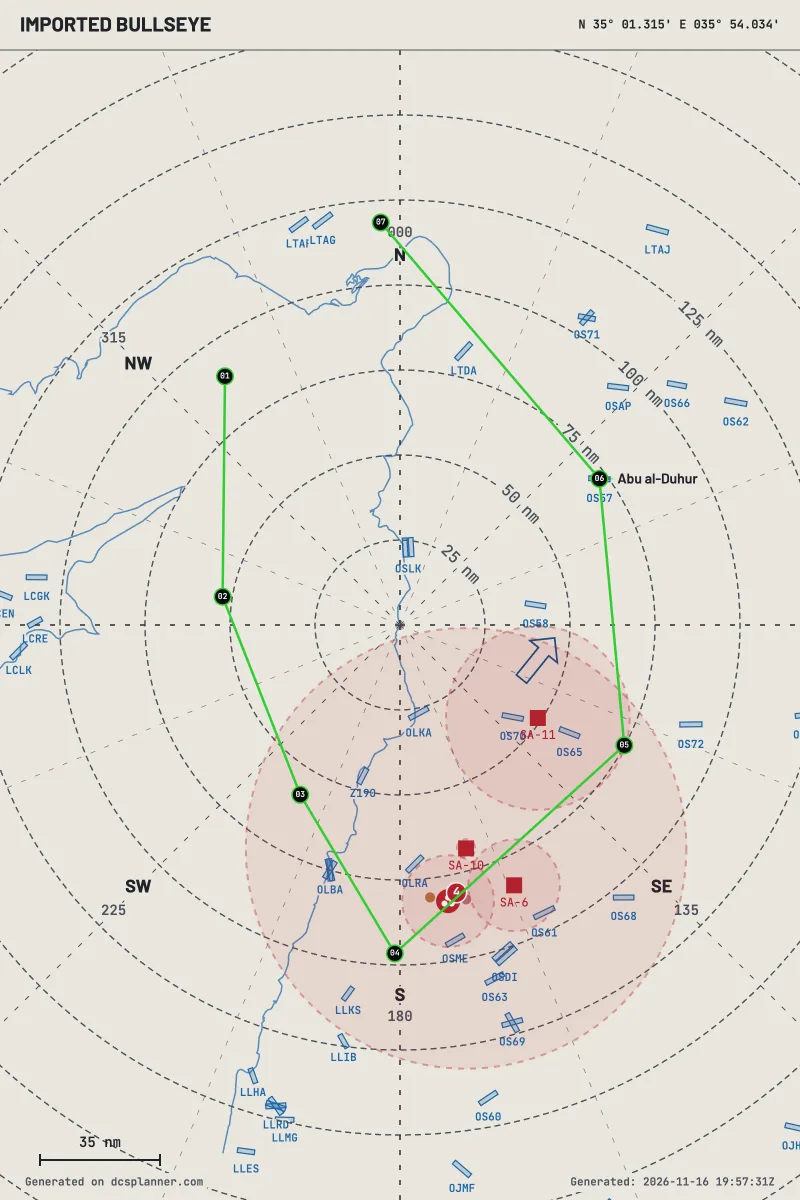
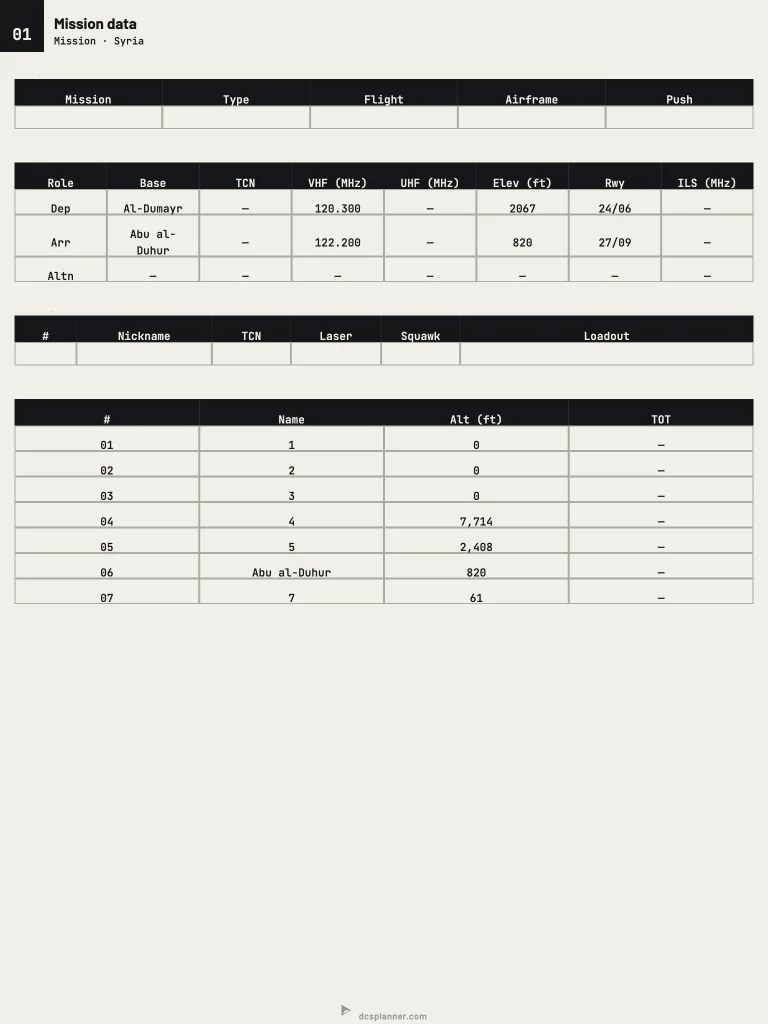
Make a DCS kneeboard in three steps
- Plan the flight. Pick a theater, drop waypoints, and set bullseye. Or import a .miz or a CombatFlite .cf and start from its route.
- Open Kneeboard. Press K in the planner, or use the Kneeboard button. Pick a preset, then add, remove, or restyle blocks.
- Export and fly. Download the PNG pages and copy them to Saved Games\DCS\Kneeboard. In the cockpit, RShift+K shows the kneeboard and [ and ] turn the pages.
What each card holds
The spider card is a polar map centered on a bullseye. It draws range rings in nautical miles, the route, units, airfields, and SAM threat rings. Waypoint and radio tables can sit on the map or on a second page.
The mission card is print-sized pages you edit: assignment, airbases, your flight, the route, UHF and VHF presets, supports, and notes. Airfield tower and TACAN come from the same catalog as the map. Long tables continue on a new sheet. Paper, ink, and type size are yours to set.
| Card | Page size | PNG pixels | Files |
|---|---|---|---|
| Spider card | 800×1200 | 1600×2400 | One PNG, or two when a data page exists |
| Mission card | 768×1024 | 1536×2048 | One PNG per sheet |
Mission card presets
Each pilot in a flight can start from the preset that fits their role and export their own pages.
- Default. Assignment, airbases, flight, route, radios and supports.
- Strike lead. Your data and notes. Four tables.
- Wingman. Assignment, route and RAMROD.
- Sead. Other flights and supports sit next to the route.
Load the pages in DCS
The kneeboard reads image files from your Saved Games folder or from the mission. The folder names, the per-aircraft subfolders, and what to check when a page does not show are in DCS kneeboard folder: add custom pages. For data the jet loads into its avionics, see the F-16 DTC guide.
FAQ
- Is the DCS Planner kneeboard builder free?
- Yes. It runs in the browser, needs no install, and a local plan needs no login.
- What kneeboard pages does it make?
- Two cards. The spider card is a polar map centered on bullseye with range rings in nautical miles, the route, SAM rings, and airfields. The mission card holds the route, radios, airbases, supports, and notes. Presets: Default, Strike lead, Wingman, Sead.
- What file format does it export?
- PNG. A spider card page is 800×1200 (PNG 1600×2400). A mission card sheet is 768×1024 (PNG 1536×2048), one file per sheet.
- Where do I put the kneeboard files?
- In Saved Games\DCS\Kneeboard for every aircraft, or in a subfolder named after one aircraft's DCS type, such as F-16C_50, for that jet only.
- Which aircraft can I plan for?
- You can plan for F-16C, F-15E, F/A-18C, A-10C II, AH-64D, M-2000C, F-14, F-14B(U), and C-130J. The pages are images, so they load in any DCS aircraft that has a kneeboard.
- Does it put the pages inside the .miz?
- No. The planner downloads PNG files and the .miz export stays separate. Missions that carry their own pages keep them in the .miz under KNEEBOARD/IMAGES.